
Firestick Apps
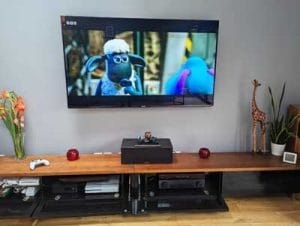
1)
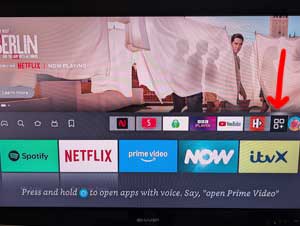
Click on the Apps icon.
2)
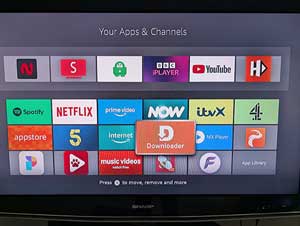
Click on the Downloader app.
3)
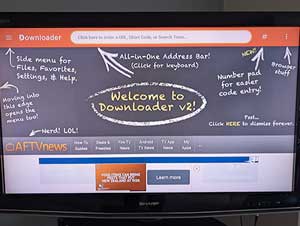
Click on the search bar at the top.
4)
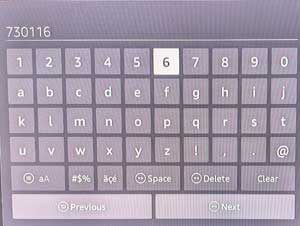
Type in 370116 and press next.
5)
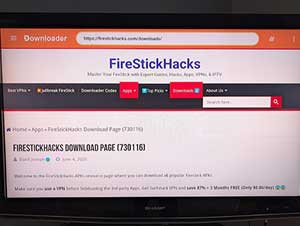
Wait for the Firestick Hacks page to load.
1)
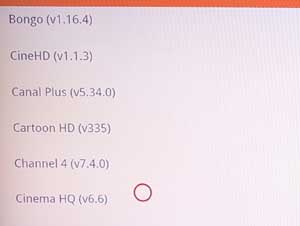
Scroll down until you find the Cinema HQ link and click on it.
2)
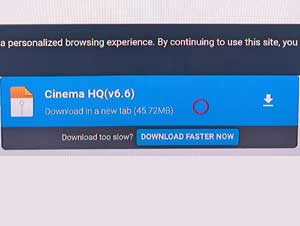
Click on the Download button on the screen.
3)
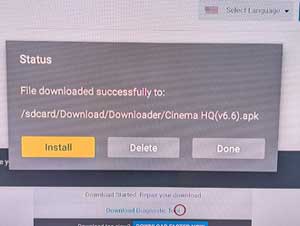
Click Install.
4)
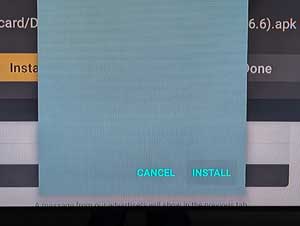
Click Install again.
5)
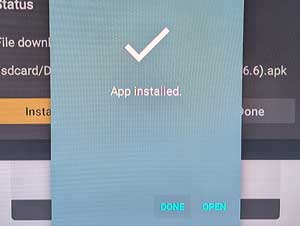
Click Done.
6)
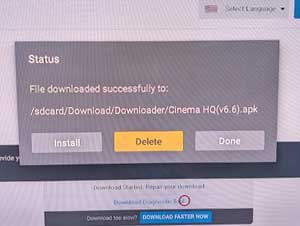
Click Delete.
7)
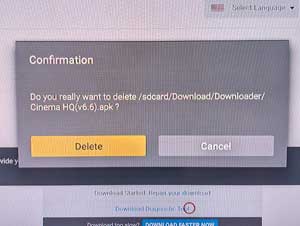
Click Delete again.
8)
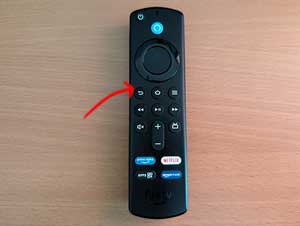
Click the back button the remote until you get back to the first web page.
1)
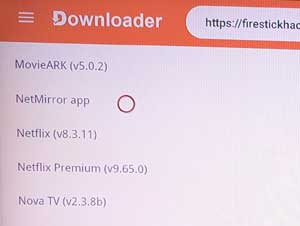
Scroll down until you find the NetMirror app link and click on it.
2)
Repeat steps 2-8 above.
1)
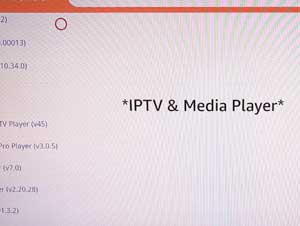
Scroll down until you find the menu IPTV & Media Player.
2)
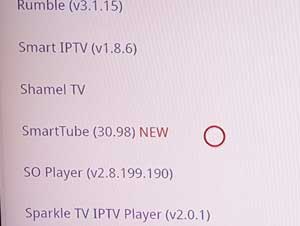
Scroll down under the title until you find the SmartTube link and click on it.
3)
Repeat steps 2-8 above.
1)
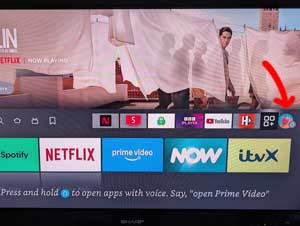
Click on the settings button on the home page.
2)
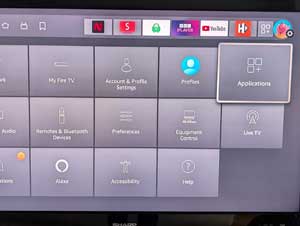
Click on Applications.
3)
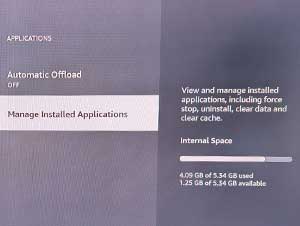
Click on Manage Installed Applications.
4)
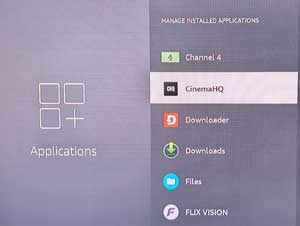
Click on the newly installed app.
5)
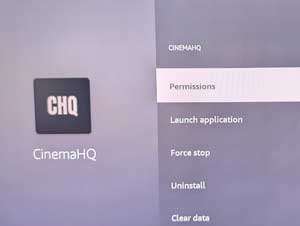
Click on Permissions.
6)
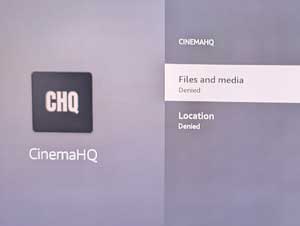
Click on Files and media.
7)
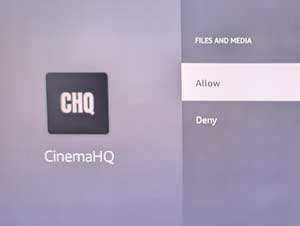
Click on Allow. Do the same for any other new apps.
1)
Click on the Apps icon.
2)
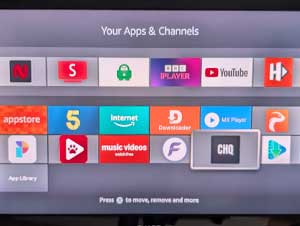
Click on the app you wish to move.
3)
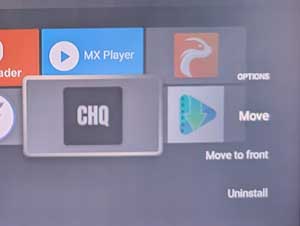
Click on Move.
4)
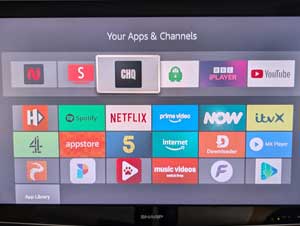
Move the app to where you want it.